If shoppers on your Shopify store now see a leave store confirmation, or a page saying a link has been blocked, it comes from Shopify's new link protection. You can't switch it off. Since October 23, 2026, though, it should only stop links to sites Shopify thinks are risky, and you can mark a domain you trust so its links go through. If the prompt shows up when a shopper clicks Add to cart or Checkout, treat it as a warning about an app or theme script, and fix that before Black Friday on November 27.
The short answer
- ✓Link protection is on for every online store and has no off switch
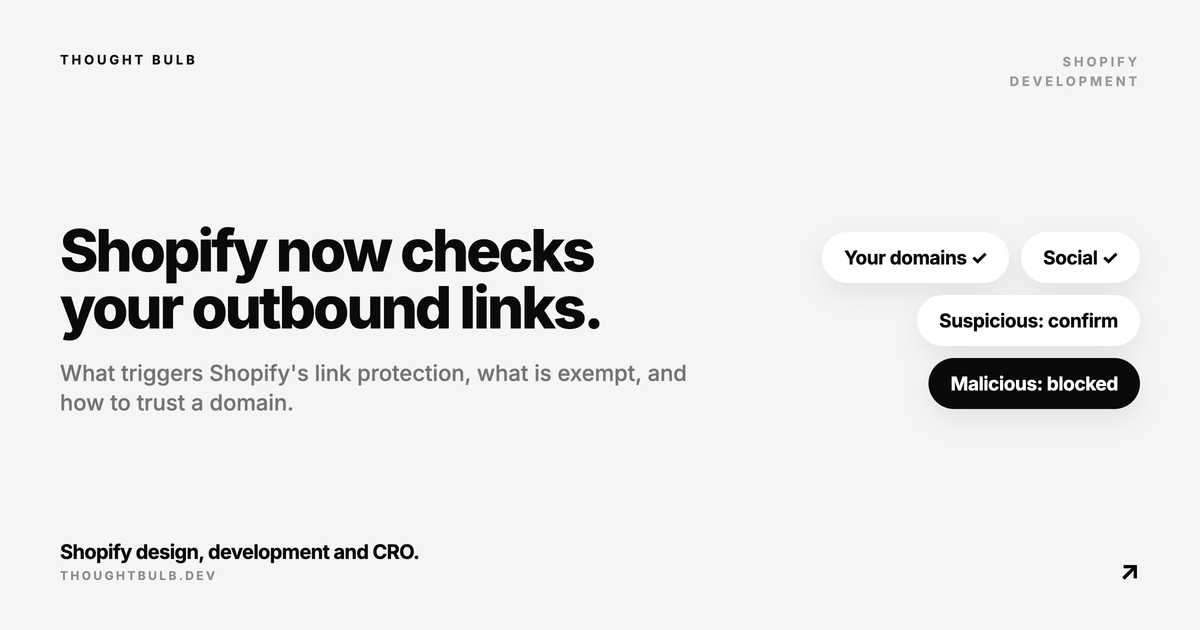
- ✓Links to sites Shopify identifies as fraudulent are blocked with no way through
- ✓Links to a small number of higher risk sites show a confirmation page first
- ✓Links to everything else, including most affiliate and partner sites, open as usual
- ✓Your own connected domains, checkout, Shopify account pages and popular social networks are always exempt
- ✓A domain you trust can be added under Online Store > Preferences > Trusted domains
What Shopify changed, and when
Shopify's changelog entry, New protection against unexpected redirects, went out on October 20, 2026. As first written, the store asked customers to confirm before going to any website outside the store. A community thread asking for an opt-out or a trusted domain list went up the next day, and the poster said Shopify Support told them the feature couldn't be disabled.
On October 23 Shopify narrowed it. The updated entry says the store now blocks only links to sites Shopify has identified as malicious, asks for confirmation only for suspicious sites, and lets other outside links through with no message. If you tested your links in those first three days and saw a warning on every outbound click, test them again, because most of them should now open directly.
Which links trigger the leave store warning
Shopify's help page, Understanding link protection on your online store, describes two screens. "This link has been blocked" shows the address and one button back to your store. "Are you sure you want to leave" followed by your store name shows the address with two buttons, back to the store or "Go to site".
Shopify doesn't publish what makes a site fraudulent or higher risk, and it says the blocklist changes over time. I don't know the rules either, so the only sensible check is to click the links you care about.
Never blocked or confirmed
- ✓Your store's domains and subdomains, as listed on the Domains page in Settings
- ✓Your store's checkout
- ✓Shopify pages your store uses, such as customer accounts and Shop Pay
- ✓Popular social networks, such as Facebook, Instagram, TikTok and YouTube
Browser back and forward buttons, email links and phone links are not covered by link protection at all.
Can still trigger it
The changelog says plainly that sites you own but haven't connected to your store might still trigger the message. That catches a lot of real setups: a booking site on its own domain, a separate wholesale store, a blog on another platform, a financing or payment step hosted by a third party. Connecting a domain to the store is one route. Adding it as a trusted domain is the lighter one.
How to find which of your links are affected
- ✓List every outside destination your store sends people to: menus, footer, buttons in theme sections, product descriptions, blog posts, pages, and any app widgets that link out
- ✓Open the live store on a phone, in a normal browser window, and click each one
- ✓Note any link that shows the confirmation or the blocked page, with the page you clicked from
- ✓Check Settings > Domains to make sure every domain you own and use is actually connected
- ✓Repeat the test for cart, checkout and account pages, where no prompt should ever appear
Clicking is the only reliable test I know of, because Shopify doesn't list which domains it scores as risky. If a theme is old or heavily edited, also search its code for hardcoded outside URLs and `window.location` changes, since those are easy to miss when you only click the visible menu.
When the prompt appears on Add to cart or checkout
Cart and checkout live on your own domains, which are exempt, so a prompt naming an unfamiliar site at that moment means something on the page is sending shoppers elsewhere. Shopify's guidance is to review recently installed or updated apps and your theme code, then contact Support with the page, the site named in the prompt and a screenshot.
In practice that means turning off app embeds one at a time in the theme editor, checking `theme.liquid` and any snippets for scripts you don't recognise, and looking for leftover code from apps you uninstalled. Our knowledge base article on an app conflict breaking the theme or storefront walks through that isolation process. If any of your apps still inject code through script tags, our post on the Shopify script tags deprecation covers moving it to app embeds, which also makes code like this much easier to find and switch off.
Fixes that the docs support
Add a trusted domain
Go to Online Store > Preferences in your Shopify admin. In the Trusted domains section, enter only the domain, such as `example.com`, with no `https://` and no path, then click Add. For some domains, such as sites on hosting platforms anyone can use, Shopify asks you to tick "I know and trust who runs this site" and click Add again. A trusted domain covers its subdomains but not a different domain that ends the same way, and you can't add a shared extension like `co.uk` on its own.
Shopify says trusted domains usually skip the confirmation, and that a customer can still see it when their browser doesn't indicate the click came from your store. Shopify doesn't say which browser settings cause that, so test the trusted link again on a phone after adding it.
Connect the domains you own
If the outside site is really yours, a booking subdomain or a second brand for example, connecting it under Settings > Domains puts it on the exempt list. Check what runs on that domain before you change its DNS, because connecting it to Shopify affects the live site.
Report a wrong block
A blocked page has no trusted domain override in the docs. If Shopify blocks a site you know is legitimate, contact Shopify Support with the site's address, and do it this week so there is time for a reply before the sale.
Early in the rollout a community member suggested on-store URL redirects, such as `/go/partner`, pointing to the outside site, and reported they skipped the prompt on a test store. That was before the October 23 change and before trusted domains were documented, and Shopify hasn't said anything about it. I would use trusted domains instead.
Before Black Friday
Add the outbound link test to whatever you run in the last week before the sale. Our Black Friday readiness check already covers apps, theme code and checkout, and this fits in with it. If a prompt appears anywhere in the cart or checkout path and you can't trace the script behind it, that is the item I would fix first.
If shoppers see a leave store prompt you can't explain, or you want every outbound link, app embed and theme script checked before November 27, we can audit the theme and apps and fix what we find.
Book a Shopify theme and app audit →