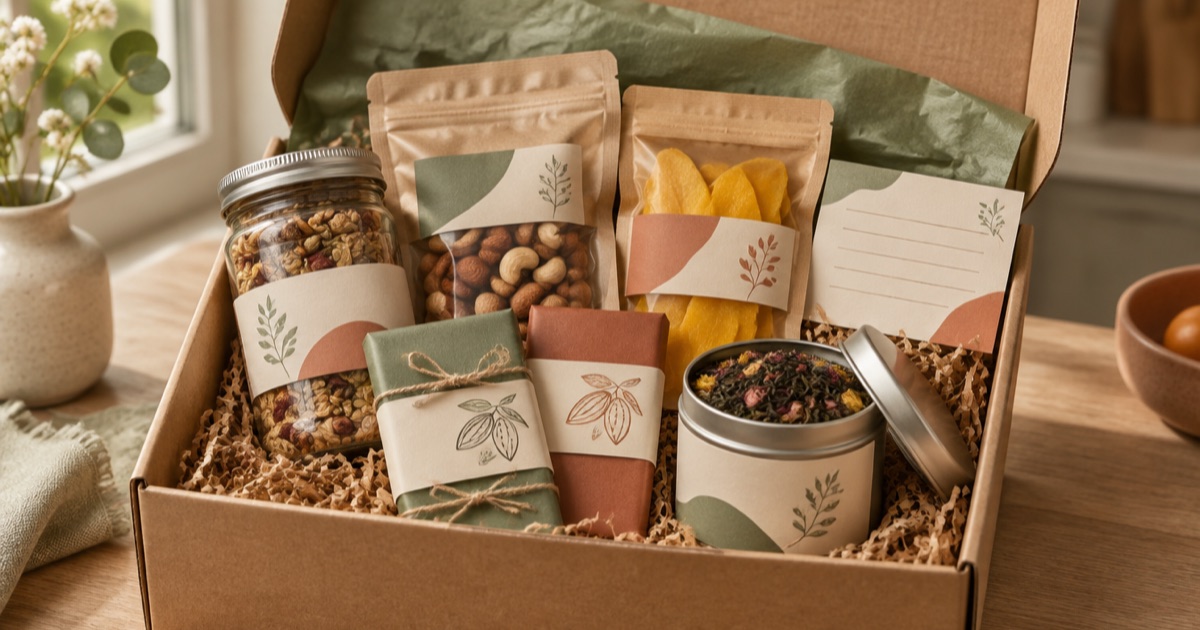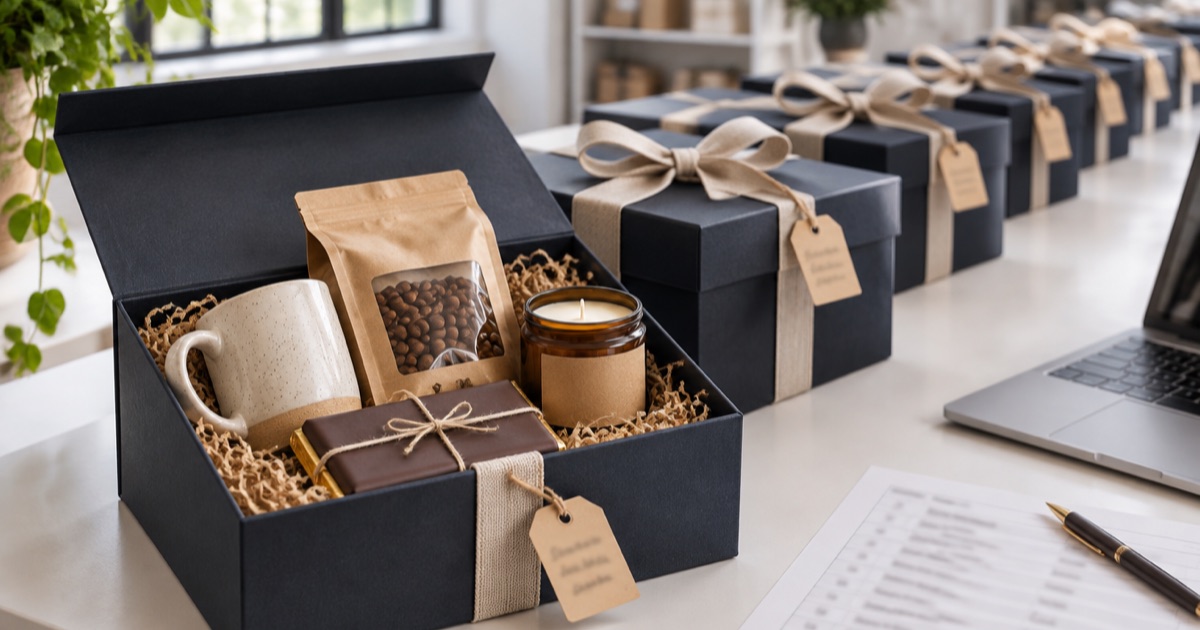
A Shopify order ships to one address, so a corporate gift order for 40 people ends up as 40 orders, or as one order plus a recipient list that you fulfil by hand. Without an app, the second route is the usual one: the buyer picks the box and sends a spreadsheet of names and addresses, and the merchant invoices once and ships each parcel. TB Bundles takes that request on the storefront, with the box contents chosen in the Build Your Own builder and the recipient list uploaded and checked before it reaches you.
The short answer
- ✓Accept that one Shopify order has one shipping address, and plan for one order or one parcel per recipient
- ✓For a handful of recipients, create a draft order for the first one in the Shopify admin, then duplicate it and change the address
- ✓For a long list, collect the recipients in a spreadsheet with fixed column headings before you quote
- ✓If shoppers should pay for many addresses in one checkout, look at a multi-address app in the Shopify App Store
- ✓For single gifts, let shoppers add a recipient name and gift message to the box, and print it on the packing slip
Can a Shopify order ship to more than one address?
No. In Shopify's Admin API, an Order has a single `shippingAddress` field, a `MailingAddress` object described as the address where the order will be delivered. Order routing can split an order across your locations when one location can't fulfil it, which decides where the items ship from. The recipient address stays the same.
Shopify B2B doesn't change this. B2B is available on the Basic, Grow, Advanced and Shopify Plus plans, and not on Starter or Retail, according to Shopify's B2B guide. Company locations have their own shipping addresses, and the B2B checkout settings can let a customer enter a one-time shipping address that applies only to that order. Each order still goes to one address, so B2B fits a company reordering stock for a few offices better than one sending a box to each of 60 employees at home.
Option one: a draft order per recipient
Draft orders are Shopify's built-in way to create an order for someone. In Orders > Drafts you add the products, the customer and a shipping address, then send an invoice. Per Shopify's draft order guide, the invoice contains a link to a checkout where the customer pays. Duplicating a draft creates a new draft with the same line items and customer information. Discounts and shipping rates are not copied, so you set those again on each copy.
For five or ten recipients this works fine. Build the first draft, duplicate it, change the shipping address, add the shipping rate, repeat. Past that it gets slow because every address is typed by hand, and the buyer gets an invoice per recipient unless you agree to bill them another way.
Option two: one order and a recipient spreadsheet
The buyer places one order (or pays one invoice) for the full quantity, and sends a spreadsheet of recipients. You then pack and ship each parcel outside that order, through your shipping software or your 3PL. It keeps the money side simple. The weak point is the spreadsheet: missing postcodes, a city typed into the address column, or a row count that doesn't match the quantity paid for. Those problems tend to show up when you are already packing.
Option three: a multi-address app
The Shopify App Store has apps for shipping to multiple addresses from one checkout. From their listings, many of them split the purchase into a separate order per address, and some also take a CSV import of recipients. They differ in pricing and in how they record the original order next to the split ones, which affects your sales reports. Read the listing and test it on a development store before a busy season, because it changes how orders arrive in your admin.
Option four: a gift request form with TB Bundles
TB Bundles, our bundle app, has a gift request flow on its Build Your Own box. In the Build Your Own editor, turn on Take gift requests for many recipients and set three things:
- ✓Fewest recipients: the smallest request you accept (10 by default)
- ✓Recipient list template: a link to your own .xlsx template, which you can upload in Content > Files
- ✓Required columns: the headings every row has to fill. A required column called Address also matches a heading of Address line 1
Then add the Gift request theme block to a page in the theme editor. The buyer picks one box there, with the same sizes, groups and per-product caps as the normal builder. They add their name, email, an optional phone number and company, the number of recipients, a Wanted by date for when the gifts should arrive (optional unless you make it required in the block settings) and notes, and upload the recipient list as an .xlsx file of up to 5 MB.
Before the request goes through, TB Bundles checks that the required columns are there, that every row has a full address, and that the number of rows matches the number of recipients entered. You get an email for each request, and you download the list from the Gift requests page in the app, behind your admin login. Requests and lists are deleted after 90 days.
The app does not create a draft order or an order for a gift request. You quote and invoice the way you already do, through a draft order or by bank transfer, and fulfil from the list. The gain is upstream of that: the box contents come from the builder, and the list arrives in your columns with every address filled.
What to ask for in the recipient spreadsheet
Write the template before the first request, and make the headings match what your shipping software imports. A sensible set of columns for a gift list:
- ✓Recipient name and, if relevant, company
- ✓Address line 1 and Address line 2
- ✓City, state or region, and postal code
- ✓Country
- ✓Recipient phone number, if your carrier or courier asks for one
- ✓A per-recipient gift message, if the buyer wants different notes
Mark only the columns you can't ship without as required in TB Bundles. Address line 2 is often empty, and a required column has to be filled on every row, so leave it optional. If the template uses separate columns for city and postal code, list each one.
Single gift boxes with a gift message
For one box sent to one person, the shopper's own checkout already handles the address. What's missing is the note. In the Build Your Own editor, turn on Let shoppers send a box as a gift. You can also turn on Ask who the gift is for, and set the longest message, from 20 to 500 characters (100 by default).
The shopper ticks Send as a gift and adds an optional recipient and message. Both show as Gift for and Gift message on that box in the cart, at checkout and on the order. Each box is its own cart line, so a shopper buying two boxes for two people can write a different message on each. If they use the Edit box link in the cart to change a box, the gift details stay.
To get the message onto the packing slip, the template has to print line item properties. Shopify's packing slip variable reference lists `line_item.properties` inside the `line_items_in_shipment` loop. The help page doesn't say whether the default template prints them, so print a test packing slip for an order with a gift message before the holiday rush.
Comparing the options
| Option | Where the buyer orders | What Shopify creates | How addresses arrive | Watch for |
|---|---|---|---|---|
| Draft order per recipient | You build it in Orders > Drafts | One draft order per address, each with its own invoice | Typed by you into each draft | Discounts and shipping rates aren't copied when you duplicate a draft |
| One order plus spreadsheet | Normal checkout or one invoice | One order with one shipping address | A file sent by email, in whatever format the buyer chose | Missing or badly formatted addresses found at packing time |
| Multi-address app | Checkout with the app | Depends on the app; many split into one order per address | Entered at checkout or imported, depending on the app | Pricing and how parent and child orders show in reports |
| TB Bundles gift request | Gift request theme block on a page | No order or draft order; you get an email | Uploaded .xlsx, checked for required columns, full addresses and row count | You still quote, invoice and fulfil yourself |
If you sell custom boxes and get the same corporate request every December, the gift request form saves the back and forth over what goes in the box and what the list should look like. The setup steps are in the Build Your Own docs.
TB Bundles adds a Build Your Own box with gift messages and a gift request form for orders to many recipients.
Install TB Bundles →