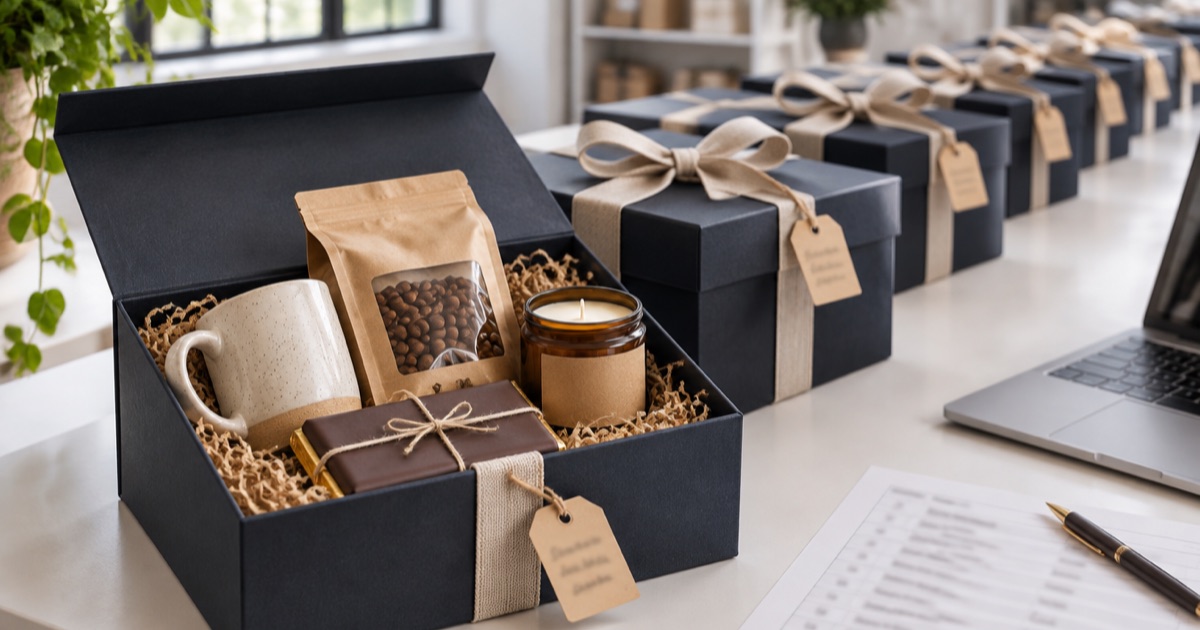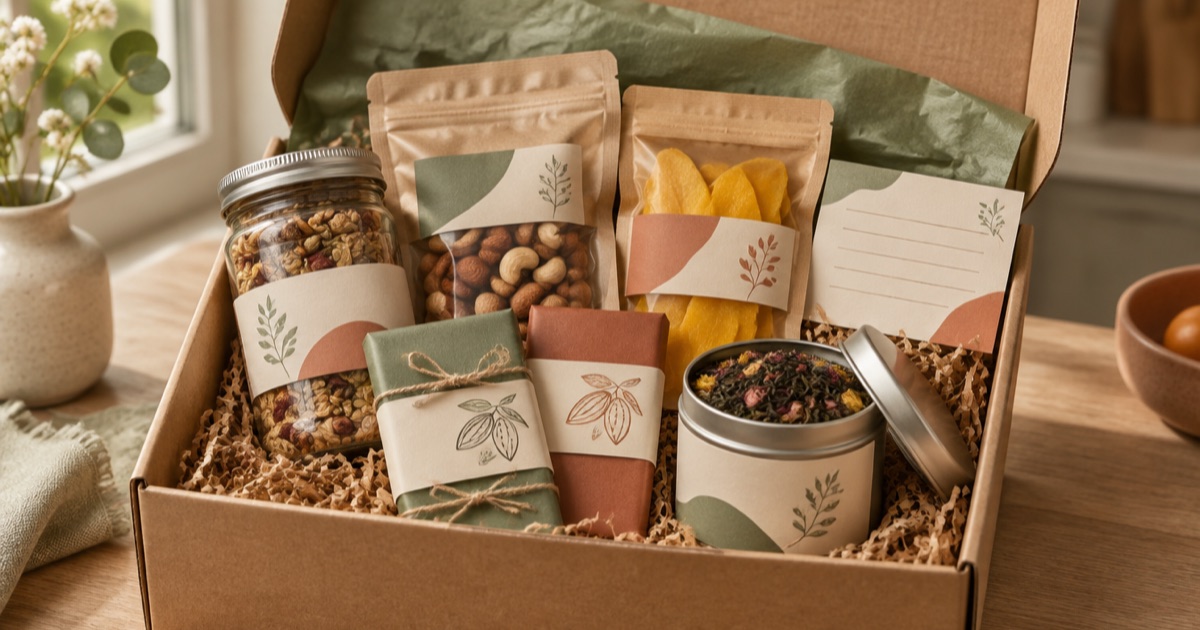
To sell a build your own subscription box on Shopify, add each item the customer picks to the cart as its own line on a subscription selling plan, and tie those lines together as one box. Shopify doesn't let bundle products use selling plans, so a box merged into a single bundle line can't be put on a subscription. You need a subscription app to bill it, such as Shopify Subscriptions or Recurpay, and a box builder that works with plan lines, such as TB Bundles.
The short answer
- ✓Install a subscription app that adds selling plans, such as Shopify Subscriptions or Recurpay
- ✓Put every product that can go in the box on the same selling plans in that app
- ✓Set the subscription discount on those plans, because that is the discount subscribers get
- ✓Create a Build Your Own offer in TB Bundles with your box sizes and rules
- ✓Turn on Advanced > Subscriptions > Let customers subscribe to this bundle
- ✓Turn on Enforce the box minimum at checkout if a box must keep its size
- ✓Add the Bundles in this order block to the order status page, and connect Recurpay if customers should edit their box later
Can Shopify bundles be sold on subscription?
No. Shopify's bundles documentation is direct about it: "Bundles can't be sold with selling plans, such as subscriptions, pre-orders, and try-before-you-buy." The page does not carve out an exception for fixed bundles or for customized bundles made with the Cart Transform Function API, which is what most bundle apps use to merge a box into one line. Shopify's Shopify Subscriptions considerations page says the same thing from the other side: bundles aren't compatible with the app.
A selling plan is how Shopify describes a way to buy a product other than a one-time purchase, with its own billing, delivery and pricing policies. Your subscription app creates the plans. Shopify Subscriptions, for example, offers weekly, monthly and yearly auto-billed plans with discounts.
How a subscription box works without a bundle product
The box has to stay as separate product lines. In TB Bundles, when a shopper chooses Subscribe, each item goes into the cart as an ordinary line on the selling plan they picked, and the lines from one box are linked by a hidden line property. The subscription app sees normal products on a plan and bills them as it would any subscription. TB Bundles does not bill anything itself.
Which plans the shopper sees depends on your setup. TB Bundles offers the selling plans that every item in the box shares, in the order Shopify returns them. If one product in the box is missing from a plan, that plan disappears from the choice, and if the items share no plan at all, the Subscribe option is hidden. Free gifts in a box are never put on the plan.
Native bundles, plain subscriptions and plan line boxes compared
| Shopify bundle product | Separate subscription products | Box of plan lines (TB Bundles) | |
|---|---|---|---|
| Sold on a selling plan | No, per Shopify's bundles docs | Yes, each product on its own | Yes, every item line carries the plan |
| Customer picks the contents | Depends on the bundle app | Yes, one product page at a time | Yes, in one box builder with your size rules |
| Discount the subscriber gets | Not applicable, one-time only | The subscription app's plan discount | The subscription app's plan discount |
| Who bills the renewals | Not applicable | The subscription app | The subscription app |
| Box rules on later orders | Not applicable | None, items are independent | Min, max, sizes and item caps apply when the customer edits the box |
Setting up a build your own subscription box in TB Bundles
Start in the subscription app. Create the plans you want to offer, such as every week and every month, and add every product that can go in the box to each of them. Then open the Build Your Own offer in TB Bundles and go to Advanced > Subscriptions. The Let customers subscribe to this bundle setting is off by default. Once it is on, the widget shows a One-time and Subscribe choice, with One-time selected first.
The box rules are the same for one-time and subscribed boxes. With Sell exact bundle sizes only, the shopper picks one of your sizes and fills it exactly, and Add to cart only turns on at that count. Each size can cap how many different products it holds, such as a 12 item box with at most 4 flavors. Add in groups makes every Add, plus and minus move by a set number, for products sold in pairs or sets. The Build Your Own docs cover each setting.
A shopper can still remove items in the cart after adding the box. If that would break your box, turn on Enforce the box minimum at checkout, which appears once Subscribe is on. It blocks checkout while a subscribed box from that offer has fewer items than it needs. TB Bundles asks for an extra permission the first time you turn it on, because it runs as a checkout rule, and it checks at checkout only.
Where the subscription discount comes from
Because a subscribed box is made of ordinary plan lines, the TB Bundles bundle discount does not apply to it. Size prices and bundle discounts work on one-time boxes. A subscribed box gets whatever discount you set on the selling plan in Shopify Subscriptions, Recurpay or your other subscription app, so price the subscription there. If you show a saving on the box page, make sure it matches the plan discount.
How customers change what's in their box
Shopify's customer experience page for Shopify Subscriptions says customers can pause, resume, skip and cancel from their customer account, and update their payment method and shipping address. It does not list changing products or quantities.
TB Bundles adds a Your subscription boxes page to customer accounts. Customers see each box with its status (Active, Paused, Cancelled or Expired), how often it ships and the date of the next order. They can add or swap items, change quantities and save the box. Your box rules still apply there, including minimum and maximum counts, exact sizes and caps per item. Changes apply from the next order. Fixed sets can't be changed on this page.
Box editing needs your subscription app connected to TB Bundles. Today that app is Recurpay, and the connection is made from inside Recurpay, so contact us to connect your store. With Shopify Subscriptions, Appstle or another app, customers can still subscribe to a box from the widget, but editing it from their account is not available yet.
Reorder and subscribe from the order status page
The Bundles in this order block works for every TB Bundles store, with no setup beyond placing it. It groups an order's lines back into bundles and gives each one Buy this bundle again and Subscribe to this bundle buttons, so a customer who bought a box once can order it again or subscribe to it. Add it in Settings > Checkout > Customize, on the order status page.
Checks before you launch
- ✓Open the subscription app and confirm every eligible product is on every plan you want to offer
- ✓Add a subscribed box on the storefront and check that Subscribe shows the plans you expect
- ✓Place a test order and confirm the order shows one line per item, each on the plan
- ✓Remove an item from a subscribed box in the cart and check that checkout blocks it, if you turned the minimum on
- ✓If Recurpay is connected, edit the box from a test customer account and check the next order
Subscribed boxes count toward bundle sales in TB Bundles analytics and in plan usage. The app is free for the first $200 in sales and works on every Shopify plan. The TB Bundles FAQ answers the common setup questions.
TB Bundles lets shoppers build a box, subscribe to it with your subscription app's plans, and change it later from their account.
Get TB Bundles on the Shopify App Store →