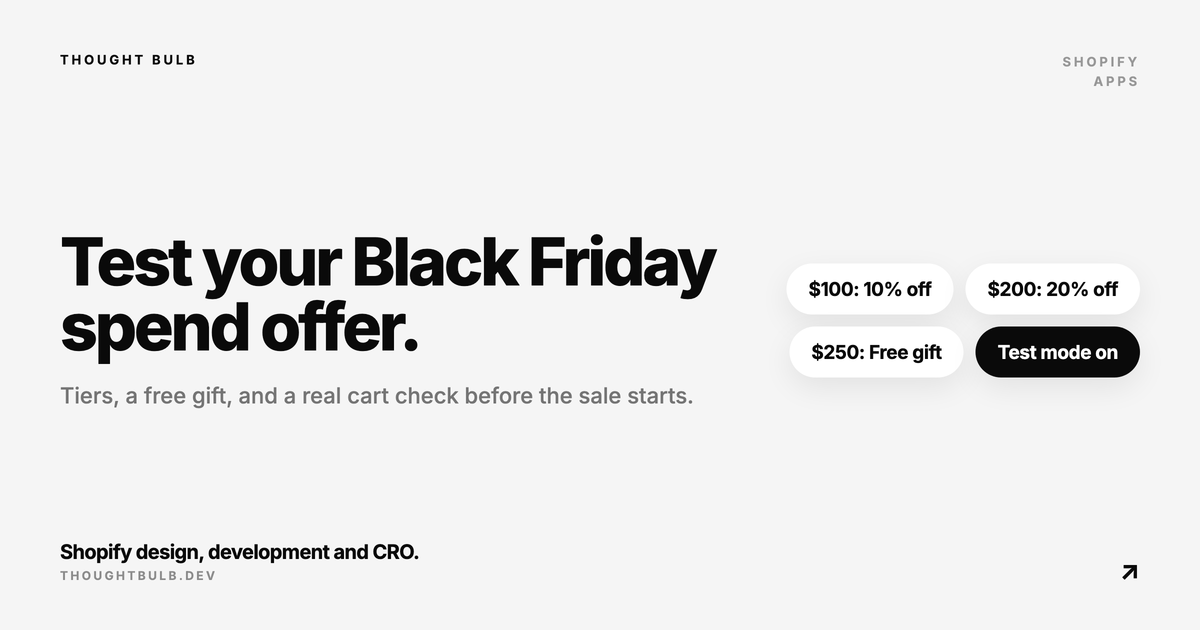
If you want a spend more, save more offer live for Black Friday (November 27 this year), set it up now and buy from your own store this week. The tiers are the quick part. What goes wrong is the cart drawer, the gift and the start date, and you only see those on the real cart.
We built spend rewards into TB Bundles for a client's Black Friday offer, so the setup below uses our app. Read it with that in mind. The checks work for any app doing the same job.
Set the tiers from your own average order
Look up your average order value for the last 90 days in Shopify Analytics. Put the first tier a little above it, so a typical cart is one small add away. Put the top level where a good order lands, because a level nobody reaches does nothing.
There's no correct percentage. I'd start from your lowest margin products, since an order discount applies to those too. Then do the sum on the top level: 20% off a $260 cart is $52, and the cost of the gift comes on top.
Only the best tier applies, so on 10% over $100 and 20% over $200, a $230 cart gets 20% off. The gift and gift cards don't count toward the spend.
Choose a gift with stock to spare
The gift has its own spend level, separate from the discount tiers. When the cart reaches it, the app adds one unit and Shopify takes the full price off at checkout. If the cart drops below the level, the gift comes back out, and a shopper who adds the same product by hand still pays for it.
Shopify can't add a sold out product. We hit this in testing: the gift was one size in one colour, that variant was sold out, and nothing appeared in the cart. So pick a variant you hold plenty of, or set it to continue selling when out of stock. If it does sell out during the sale, the gift drops off the bar and the Spend rewards page warns you.
Keep the label on the bar short. Free socks fits on a step at phone width, and a long product title wraps.
Decide whether it combines with your bundles
Combine with bundle discounts is on by default, so a cart gets its bundle savings and the spend reward together. Check that against your deepest bundle, because that order takes both discounts. Turn it off and Shopify applies whichever saves the shopper more.
Discount codes follow Shopify's combination rules. If you're also running a code, read why Shopify discount codes don't stack on Black Friday first.
Test it on the real cart
Set the campaign's status to Test mode, save, and open the test link. That browser gets the real bar, gift and discount, whatever the schedule says, and shoppers without the link see nothing. Then go through these on the theme you'll be selling from:
- ✓Add products until you cross each level, in the cart drawer and on the cart page.
- ✓Look at the bar on a phone.
- ✓Lower a quantity until the cart drops below the gift level, and check the gift comes out.
- ✓Remove the gift by hand and check it stays out for that visit.
- ✓Go to checkout and read how the discount shows in the order summary.
- ✓If you run bundles, add one and check the total is the one you meant.
The other thing we hit: the app embed was on in a draft theme and off in the live one. The test link does nothing without the embed, and neither does the campaign, so check the theme that will be published on the day. A custom cart drawer may need the bar placed by hand, which is one element with the data-sb-spend-bar attribute.
Anyone with the link gets the real discount, so keep it to your team.
Schedule it and read the line under the dates
Set a start and an end in your store's time zone, then set the status to Live. A date with no time counts from 12:00 AM for a start and up to 11:59 PM for an end. The page then says when shoppers get the rewards, for example from Nov 27, 2026, 12:00 AM. Read that before you save, because with no start date the rewards go live as soon as you do.
Check your plan allowance before the weekend
An order with a spend reward counts toward your plan's sales allowance for its whole cart, leaving out gift cards. That uses the allowance faster than bundle lines alone. The app emails you at 80% and 95%. At 100%, bundle discounts and spend rewards pause until you upgrade or, on a paid plan, until the next month starts. A Black Friday weekend is a bad time to find that out, so look at the pricing now.
The offer is only one part of the weekend. Our Black Friday readiness check covers the rest of the store.
Spend rewards are on every TB Bundles plan, the free one included.
Read the spend rewards docs →